# 默认注释了源码仓库,如有需要可自行取消注释 deb http://mirrors.ustc.edu.cn/debian bullseye main contrib non-free # deb-src http://mirrors.ustc.edu.cn/debian bullseye main contrib non-free deb http://mirrors.ustc.edu.cn/debian bullseye-updates main contrib non-free # deb-src http://mirrors.ustc.edu.cn/debian bullseye-updates main contrib non-free
# backports 软件源,请按需启用 # deb http://mirrors.ustc.edu.cn/debian bullseye-backports main contrib non-free # deb-src http://mirrors.ustc.edu.cn/debian bullseye-backports main contrib non-free
如果是Debian 12,更改为如下:
1 2 3 4 5 6 7 8 9
# 默认注释了源码仓库,如有需要可自行取消注释 deb http://mirrors.ustc.edu.cn/debian bookworm main contrib non-free non-free-firmware # deb-src http://mirrors.ustc.edu.cn/debian bookworm main contrib non-free non-free-firmware deb http://mirrors.ustc.edu.cn/debian bookworm-updates main contrib non-free non-free-firmware # deb-src http://mirrors.ustc.edu.cn/debian bookworm-updates main contrib non-free non-free-firmware
# backports 软件源,请按需启用 # deb http://mirrors.ustc.edu.cn/debian bookworm-backports main contrib non-free non-free-firmware # deb-src http://mirrors.ustc.edu.cn/debian bookworm-backports main contrib non-free non-free-firmware
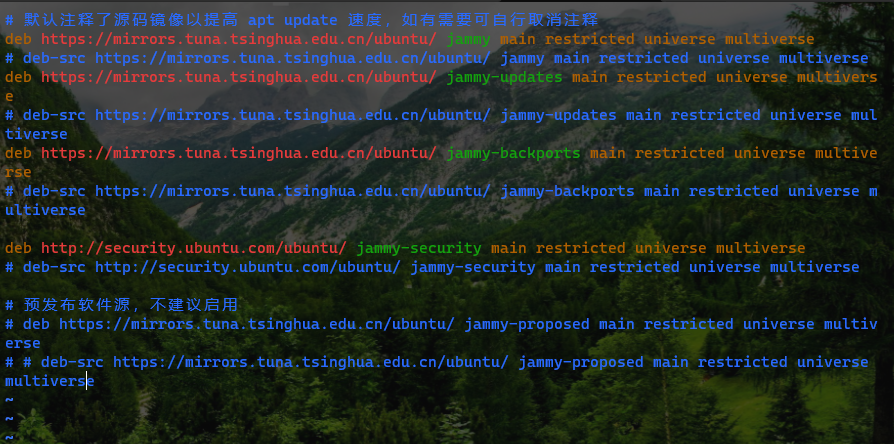
# 默认注释了源码镜像以提高 apt update 速度,如有需要可自行取消注释 deb https://mirrors.tuna.tsinghua.edu.cn/ubuntu/ jammy main restricted universe multiverse # deb-src https://mirrors.tuna.tsinghua.edu.cn/ubuntu/ jammy main restricted universe multiverse deb https://mirrors.tuna.tsinghua.edu.cn/ubuntu/ jammy-updates main restricted universe multiverse # deb-src https://mirrors.tuna.tsinghua.edu.cn/ubuntu/ jammy-updates main restricted universe multiverse deb https://mirrors.tuna.tsinghua.edu.cn/ubuntu/ jammy-backports main restricted universe multiverse # deb-src https://mirrors.tuna.tsinghua.edu.cn/ubuntu/ jammy-backports main restricted universe multiverse
deb http://security.ubuntu.com/ubuntu/ jammy-security main restricted universe multiverse # deb-src http://security.ubuntu.com/ubuntu/ jammy-security main restricted universe multiverse
# 预发布软件源,不建议启用 # deb https://mirrors.tuna.tsinghua.edu.cn/ubuntu/ jammy-proposed main restricted universe multiverse # # deb-src https://mirrors.tuna.tsinghua.edu.cn/ubuntu/ jammy-proposed main restricted universe multiverse
# 默认注释了源码镜像以提高 apt update 速度,如有需要可自行取消注释 deb https://mirrors.tuna.tsinghua.edu.cn/ubuntu/ lunar main restricted universe multiverse # deb-src https://mirrors.tuna.tsinghua.edu.cn/ubuntu/ lunar main restricted universe multiverse deb https://mirrors.tuna.tsinghua.edu.cn/ubuntu/ lunar-updates main restricted universe multiverse # deb-src https://mirrors.tuna.tsinghua.edu.cn/ubuntu/ lunar-updates main restricted universe multiverse deb https://mirrors.tuna.tsinghua.edu.cn/ubuntu/ lunar-backports main restricted universe multiverse # deb-src https://mirrors.tuna.tsinghua.edu.cn/ubuntu/ lunar-backports main restricted universe multiverse
deb http://security.ubuntu.com/ubuntu/ lunar-security main restricted universe multiverse # deb-src http://security.ubuntu.com/ubuntu/ lunar-security main restricted universe multiverse
# 预发布软件源,不建议启用 # deb https://mirrors.tuna.tsinghua.edu.cn/ubuntu/ lunar-proposed main restricted universe multiverse # # deb-src https://mirrors.tuna.tsinghua.edu.cn/ubuntu/ lunar-proposed main restricted universe multiverse
# 默认注释了源码镜像以提高 apt update 速度,如有需要可自行取消注释 deb https://mirrors.tuna.tsinghua.edu.cn/ubuntu/ kinetic main restricted universe multiverse # deb-src https://mirrors.tuna.tsinghua.edu.cn/ubuntu/ kinetic main restricted universe multiverse deb https://mirrors.tuna.tsinghua.edu.cn/ubuntu/ kinetic-updates main restricted universe multiverse # deb-src https://mirrors.tuna.tsinghua.edu.cn/ubuntu/ kinetic-updates main restricted universe multiverse deb https://mirrors.tuna.tsinghua.edu.cn/ubuntu/ kinetic-backports main restricted universe multiverse # deb-src https://mirrors.tuna.tsinghua.edu.cn/ubuntu/ kinetic-backports main restricted universe multiverse
deb http://security.ubuntu.com/ubuntu/ kinetic-security main restricted universe multiverse # deb-src http://security.ubuntu.com/ubuntu/ kinetic-security main restricted universe multiverse
# 预发布软件源,不建议启用 # deb https://mirrors.tuna.tsinghua.edu.cn/ubuntu/ kinetic-proposed main restricted universe multiverse # # deb-src https://mirrors.tuna.tsinghua.edu.cn/ubuntu/ kinetic-proposed main restricted universe multiverse
# 默认注释了源码镜像以提高 apt update 速度,如有需要可自行取消注释 deb https://mirrors.tuna.tsinghua.edu.cn/ubuntu/ focal main restricted universe multiverse # deb-src https://mirrors.tuna.tsinghua.edu.cn/ubuntu/ focal main restricted universe multiverse deb https://mirrors.tuna.tsinghua.edu.cn/ubuntu/ focal-updates main restricted universe multiverse # deb-src https://mirrors.tuna.tsinghua.edu.cn/ubuntu/ focal-updates main restricted universe multiverse deb https://mirrors.tuna.tsinghua.edu.cn/ubuntu/ focal-backports main restricted universe multiverse # deb-src https://mirrors.tuna.tsinghua.edu.cn/ubuntu/ focal-backports main restricted universe multiverse
deb http://security.ubuntu.com/ubuntu/ focal-security main restricted universe multiverse # deb-src http://security.ubuntu.com/ubuntu/ focal-security main restricted universe multiverse
# 预发布软件源,不建议启用 # deb https://mirrors.tuna.tsinghua.edu.cn/ubuntu/ focal-proposed main restricted universe multiverse # # deb-src https://mirrors.tuna.tsinghua.edu.cn/ubuntu/ focal-proposed main restricted universe multiverse
Ubuntu 18.04 (bionic):
1 2 3 4 5 6 7 8 9 10 11 12 13 14
# 默认注释了源码镜像以提高 apt update 速度,如有需要可自行取消注释
deb https://mirrors.tuna.tsinghua.edu.cn/ubuntu/ bionic main restricted universe multiverse
# deb-src https://mirrors.tuna.tsinghua.edu.cn/ubuntu/ bionic main restricted universe multiverse
deb https://mirrors.tuna.tsinghua.edu.cn/ubuntu/ bionic-updates main restricted universe multiverse
# deb-src https://mirrors.tuna.tsinghua.edu.cn/ubuntu/ bionic-updates main restricted universe multiverse
deb https://mirrors.tuna.tsinghua.edu.cn/ubuntu/ bionic-backports main restricted universe multiverse
# deb-src https://mirrors.tuna.tsinghua.edu.cn/ubuntu/ bionic-backports main restricted universe multiverse

deb http://security.ubuntu.com/ubuntu/ bionic-security main restricted universe multiverse
# deb-src http://security.ubuntu.com/ubuntu/ bionic-security main restricted universe multiverse

# 预发布软件源,不建议启用
# deb https://mirrors.tuna.tsinghua.edu.cn/ubuntu/ bionic-proposed main restricted universe multiverse
# # deb-src https://mirrors.tuna.tsinghua.edu.cn/ubuntu/ bionic-proposed main restricted universe multiverse
# 默认注释了源码镜像以提高 apt update 速度,如有需要可自行取消注释
deb https://mirrors.tuna.tsinghua.edu.cn/ubuntu/ xenial main restricted universe multiverse
# deb-src https://mirrors.tuna.tsinghua.edu.cn/ubuntu/ xenial main restricted universe multiverse
deb https://mirrors.tuna.tsinghua.edu.cn/ubuntu/ xenial-updates main restricted universe multiverse
# deb-src https://mirrors.tuna.tsinghua.edu.cn/ubuntu/ xenial-updates main restricted universe multiverse
deb https://mirrors.tuna.tsinghua.edu.cn/ubuntu/ xenial-backports main restricted universe multiverse
# deb-src https://mirrors.tuna.tsinghua.edu.cn/ubuntu/ xenial-backports main restricted universe multiverse

deb http://security.ubuntu.com/ubuntu/ xenial-security main restricted universe multiverse
# deb-src http://security.ubuntu.com/ubuntu/ xenial-security main restricted universe multiverse

# 预发布软件源,不建议启用
# deb https://mirrors.tuna.tsinghua.edu.cn/ubuntu/ xenial-proposed main restricted universe multiverse
# # deb-src https://mirrors.tuna.tsinghua.edu.cn/ubuntu/ xenial-proposed main restricted universe multiverse
deb https://mirrors.aliyun.com/ubuntu/ jammy main restricted universe multiverse
deb-src https://mirrors.aliyun.com/ubuntu/ jammy main restricted universe multiverse

deb https://mirrors.aliyun.com/ubuntu/ jammy-security main restricted universe multiverse
deb-src https://mirrors.aliyun.com/ubuntu/ jammy-security main restricted universe multiverse

deb https://mirrors.aliyun.com/ubuntu/ jammy-updates main restricted universe multiverse
deb-src https://mirrors.aliyun.com/ubuntu/ jammy-updates main restricted universe multiverse

# deb https://mirrors.aliyun.com/ubuntu/ jammy-proposed main restricted universe multiverse
# deb-src https://mirrors.aliyun.com/ubuntu/ jammy-proposed main restricted universe multiverse

deb https://mirrors.aliyun.com/ubuntu/ jammy-backports main restricted universe multiverse
deb-src https://mirrors.aliyun.com/ubuntu/ jammy-backports main restricted universe multiverse
deb https://mirrors.aliyun.com/ubuntu/ focal main restricted universe multiverse
deb-src https://mirrors.aliyun.com/ubuntu/ focal main restricted universe multiverse

deb https://mirrors.aliyun.com/ubuntu/ focal-security main restricted universe multiverse
deb-src https://mirrors.aliyun.com/ubuntu/ focal-security main restricted universe multiverse

deb https://mirrors.aliyun.com/ubuntu/ focal-updates main restricted universe multiverse
deb-src https://mirrors.aliyun.com/ubuntu/ focal-updates main restricted universe multiverse

# deb https://mirrors.aliyun.com/ubuntu/ focal-proposed main restricted universe multiverse
# deb-src https://mirrors.aliyun.com/ubuntu/ focal-proposed main restricted universe multiverse

deb https://mirrors.aliyun.com/ubuntu/ focal-backports main restricted universe multiverse
deb-src https://mirrors.aliyun.com/ubuntu/ focal-backports main restricted universe multiverse
2 packages can be upgraded. Run 'apt list --upgradable' to see them.
W: Failed to fetch https://mirrors.tuna.tsinghua.edu.cn/ubuntu/dists/focal/InRelease  Cannot initiate the connection to mirrors.tuna.tsinghua.edu.cn:443 (2402:f000:1:400::2). - connect (101: Network is unreachable) Could not connect to mirrors.tuna.tsinghua.edu.cn:443 (101.6.15.130), connection timed out
W: Failed to fetch https://mirrors.tuna.tsinghua.edu.cn/ubuntu/dists/focal-updates/InRelease  Cannot initiate the connection to mirrors.tuna.tsinghua.edu.cn:443 (2402:f000:1:400::2). - connect (101: Network is unreachable)
W: Failed to fetch https://mirrors.tuna.tsinghua.edu.cn/ubuntu/dists/focal-backports/InRelease  Cannot initiate the connection to mirrors.tuna.tsinghua.edu.cn:443 (2402:f000:1:400::2). - connect (101: Network is unreachable)
W: Some index files failed to download. They have been ignored, or old ones used instead.
Welcome to Hexo! This is your very first post. Check documentation for more info. If you get any problems when using Hexo, you can find the answer in troubleshooting or you can ask me on GitHub.